


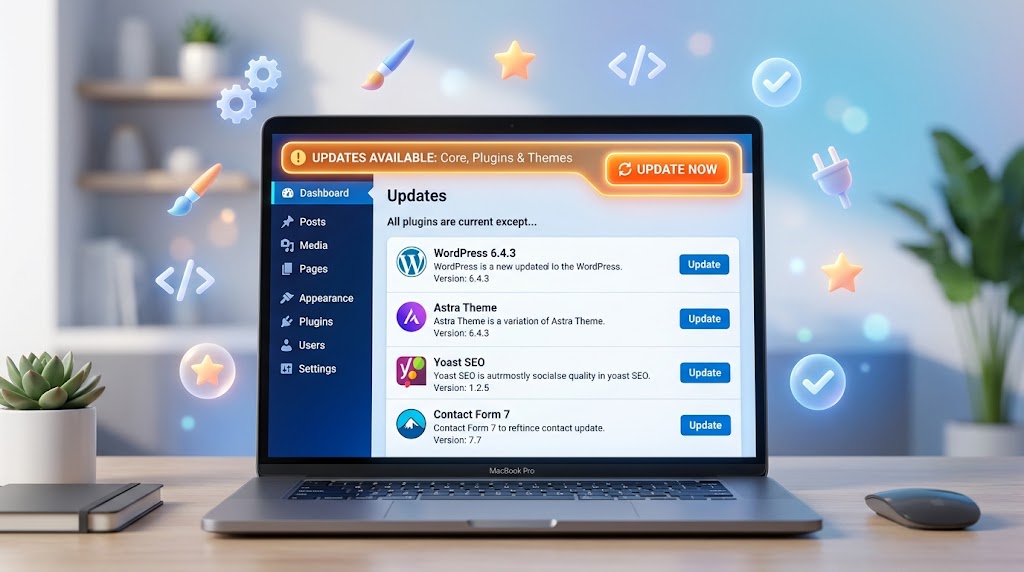
Updates are essential for security but can break your site. How do you find the right balance? Here’s a practical framework.
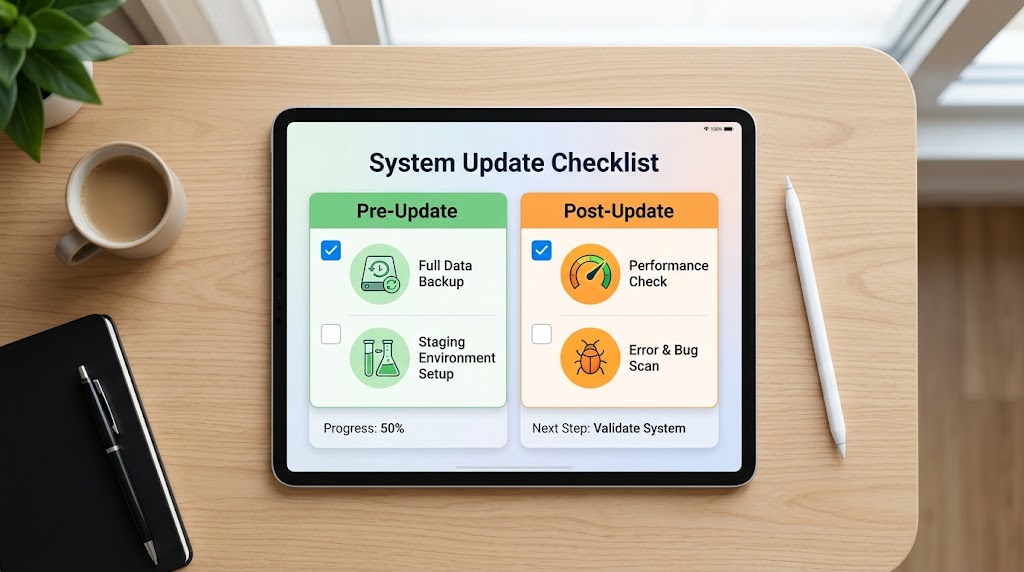
🔄 Understanding Updates
WordPress has three core update categories:
- Core: WordPress itself (minor and major versions)
- Plugins: Functionality extensions
- Themes: Design templates
⚡ Manual vs. Automatic: The Pros and Cons
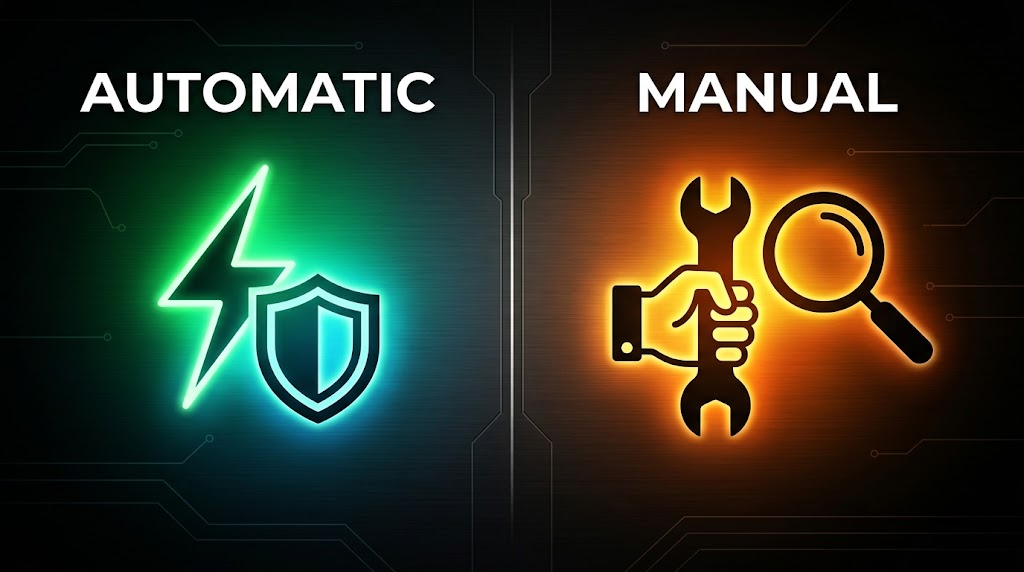
| Factor | Automatic Updates | Manual Updates |
|---|---|---|
| Speed | ✅ Instant | ❌ Takes time |
| Security | ✅ Vulnerabilities fixed quickly | ❌ Delayed protection |
| Control | ❌ Limited | ✅ Full control |
| Risk | ❌ Can break site without warning | ✅ Test in staging first |
| Time | ✅ No time investment | ❌ Time-consuming |
| Complexity | ✅ Simple to manage | ❌ Requires expertise |
🎯 The Balanced Approach
1. Know Your Site
Assess Risk:
- High Risk: E-commerce, sensitive data, high traffic
- Medium Risk: Business sites, blogs
- Low Risk: Personal sites, internal tools
2. Prioritize Updates
By Type:
Security Updates: Automatic (always)
Major Version: Manual (test in staging)
Minor Version: Automatic (low risk)
Plugin Updates: Mixed (see below)
Theme Updates: Mixed (see below)
For Plugins:
- Security Plugins: Automatically update
- Popular Plugins: Automatically update (well-maintained)
- Niche Plugins: Manual (test first)
- Custom Plugins: Manual (test thoroughly)
3. Implement a Staging Workflow
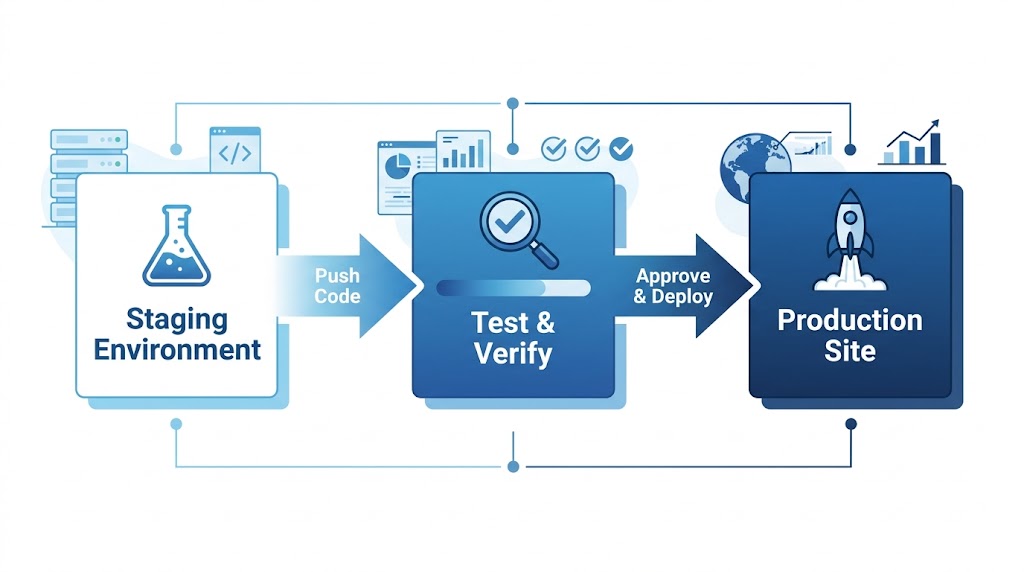
For Manual Updates:
- Clone site to staging environment
- Test updates in staging
- Verify site functions correctly
- Push updates to production
Automation Setup:
# Run automatic updates for security plugins
wp plugin update wordfence --quiet
wp plugin update iThemes-security --quietCode language: PHP (php)
🛠️ Update Management Tools
Using WP-CLI:
# Update plugins with dry run
wp plugin update --dry-run --all

# Update themes with dry run
wp theme update --dry-run --all

# Update core
wp core update --dry-run
Code language: PHP (php)
Using iThemes Security Version Management:
“Turn on Version Management to automatically update vulnerable plugins or themes if a vulnerability is discovered by Site Scan”.
📋 Update Policy Template
Cyber Mickey WordPress Update Policy
Automatic Updates
- WordPress security releases: ✅ Automatic
- Popular plugin updates: ✅ Automatic (after 24h)
- Theme updates: ⚠️ Manual (staging only)
- Major WordPress releases: ⚠️ Manual (staging only)
- Custom plugins: ⚠️ Manual (staging only)
Schedule
- Security updates: Immediate
- Minor updates: Within 24 hours
- Major updates: Within 1 week
- Plugin updates: Review and test within 72 hours
Emergency Protocol
- If updates break site:
  1. Disable automatic updates
  2. Restore previous version (backup)
  3. Investigate cause
  4. Test fix in staging
  5. Apply fix when ready
💡 Update Best Practices
- Always backup first! “Run a backup before updating themes, plugins or WordPress core”.
- Use staging environment for major updates.
- Keep plugins and themes maintained.
- Delete unused themes and plugins—they still need updates.
- Update regularly—even small updates prevent vulnerabilities.
- Check site after updates—ensure everything functions correctly.
Recent Post

September 10, 2026
WP-CLI: 15 Commands Every WordPress Developer Should Know

September 9, 2026
10 Essential WordPress Design Plugins for a Modern.

September 8, 2026
From Figma to WordPress: A Designer’s Handoff Checklist

September 7, 2026
Accessibility in WordPress Design: Your Ethical and Legal.

July 12, 2026
