


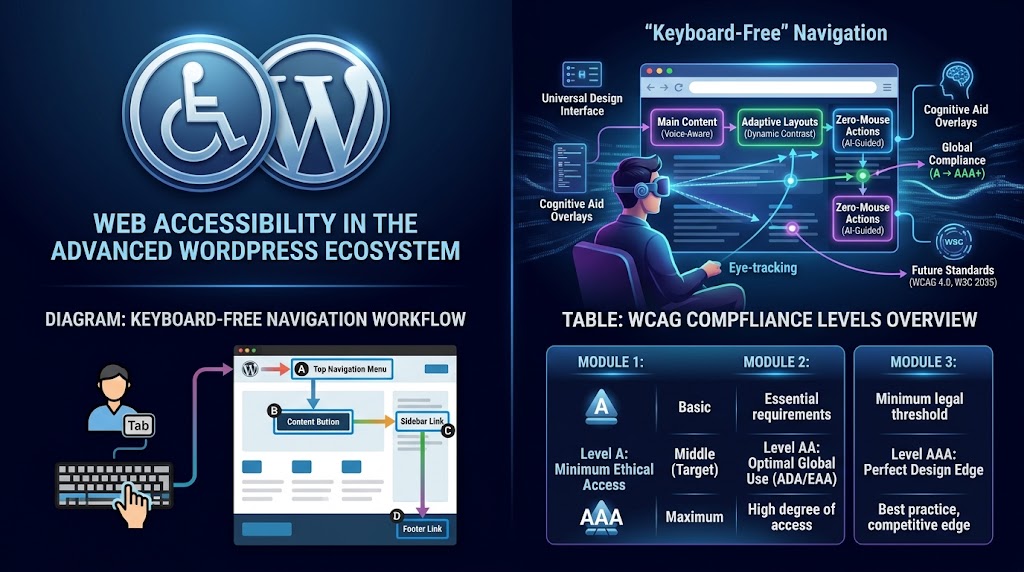
Web accessibility isn’t just a nice-to-have—it’s a legal requirement in many countries and a fundamental aspect of ethical web design. For WordPress designers, understanding accessibility means knowing how to build sites that work for everyone.
🏛️ Why Accessibility Matters
Over 1 billion people worldwide live with some form of disability. In the US alone, ADA compliance lawsuits related to website accessibility increased by over 300% in recent years.
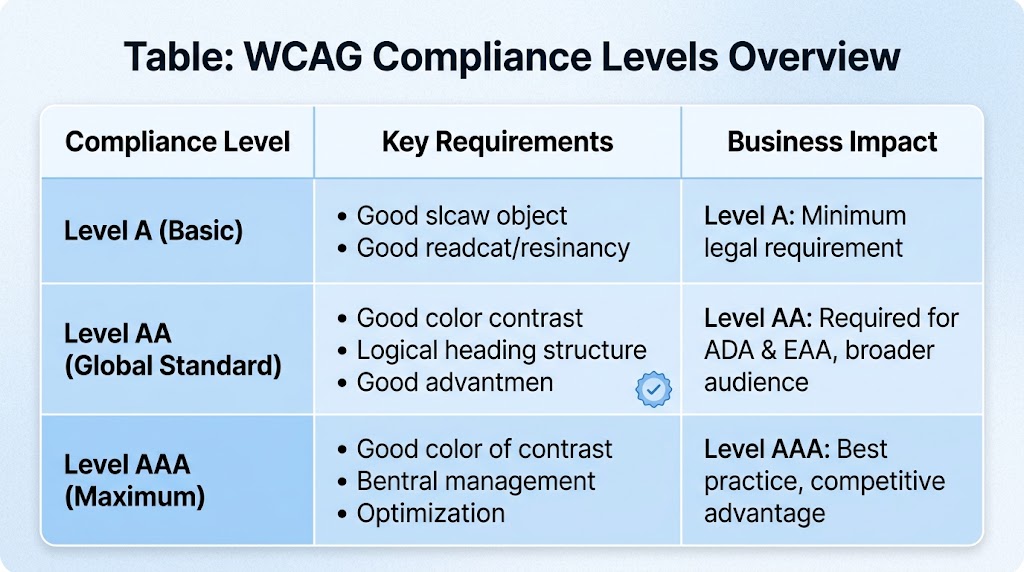
Key Accessibility Standards
- WCAG 2.1 AA: The global standard for web accessibility
- ADA (US): Requires websites to be accessible to people with disabilities
- EAA (EU): The European Accessibility Act
🎯 The 5 Most Common Accessibility Mistakes in WordPress Design
1. Poor Color Contrast
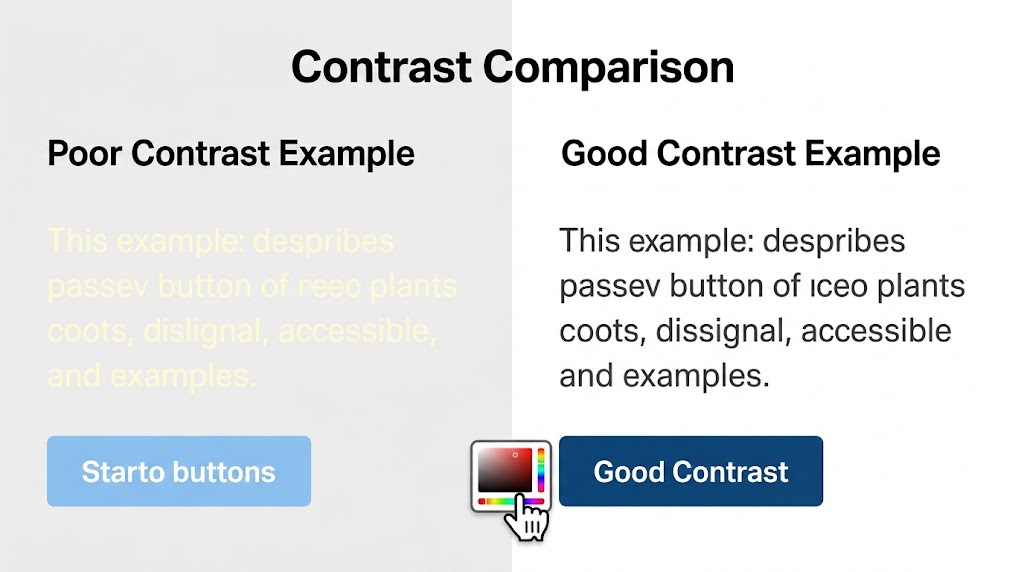
Low contrast between text and background makes content unreadable for users with visual impairments.
WCAG Requirements:
- Normal text: 4.5:1 contrast ratio minimum
- Large text (18pt+): 3:1 contrast ratio minimum
- UI components and graphical objects: 3:1 contrast ratio
How to Check: Use tools like WebAIM’s Contrast Checker or the Stark plugin for Figma.
The Fix:
/* ❌ Poor contrast - fails WCAG */
.bad-contrast {
    color: #999999; /* Light gray */
    background-color: #ffffff; /* White */
}

/* ✅ Good contrast - passes AA */
.good-contrast {
    color: #333333; /* Dark gray */
    background-color: #ffffff; /* White */
}

/* ✅ Even better - passes AAA */
.best-contrast {
    color: #222222; /* Near black */
    background-color: #ffffff; /* White */
}Code language: CSS (css)
2. Missing Alt Text on Images
Screen readers rely on alt text to describe images to visually impaired users.
The Fix:
- Always add descriptive alt text
- For decorative images, use empty alt text (
alt="") - For informative images, describe what’s shown in context
<!-- ❌ Bad alt text -->
<img src="puppy.jpg" alt="dog">

<!-- ❌ Missing alt text completely -->
<img src="puppy.jpg">

<!-- ✅ Good alt text -->
<img src="golden-retriever-puppy.jpg" alt="A golden retriever puppy playing in a field of green grass">

<!-- ✅ Decorative image -->
<img src="background-pattern.jpg" alt="">Code language: HTML, XML (xml)
3. Poor Heading Structure
Using headings incorrectly makes navigation impossible for screen reader users.
The Fix:
- Use only one H1 per page (your page title)
- Structure with H2, H3, H4 in a logical hierarchy
- Don’t skip levels (H1 → H3 without H2)
- Don’t use headings for visual styling only
<!-- ✅ Semantic heading structure -->
<h1>Main Page Title</h1>
    <h2>Section One</h2>
        <h3>Subsection A</h3>
        <h3>Subsection B</h3>
    <h2>Section Two</h2>
        <h3>Subsection A</h3>
            <h4>Detail 1</h4>
            <h4>Detail 2</h4>Code language: HTML, XML (xml)
4. Keyboard Navigation Issues
Many users navigate without a mouse. If your site requires mouse interaction, you’re excluding these users.
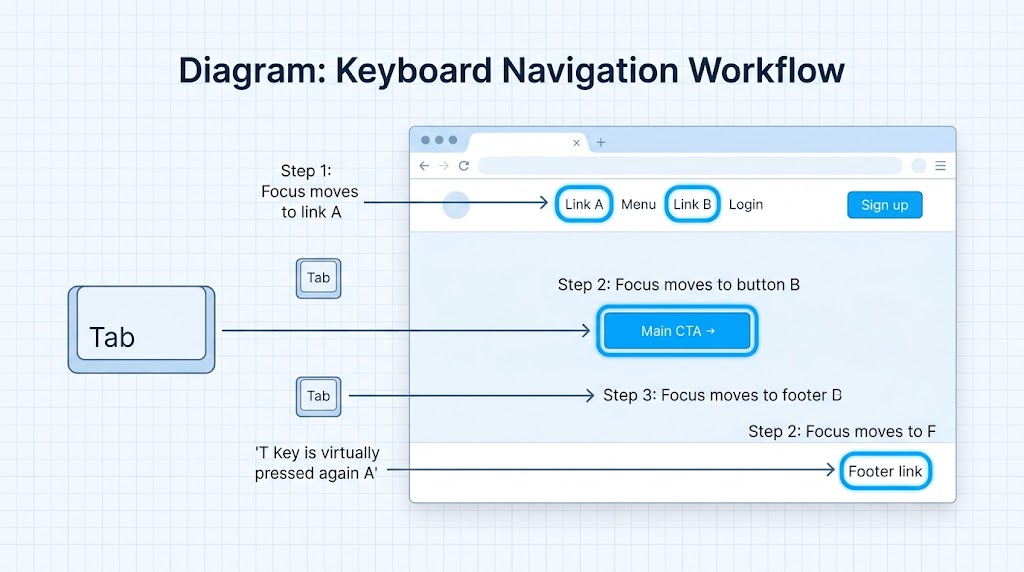
The Fix:
- Ensure all interactive elements are reachable with Tab key
- Show a visible focus indicator
- Don’t use
tabindexgreater than 0 - Ensure dropdowns and modals are keyboard accessible
CSS for Focus Indicators:
/* ❌ Don't remove focus indicators */
:focus {
    outline: none; /* Bad for accessibility! */
}

/* ✅ Make focus indicators visible and stylish */
:focus-visible {
    outline: 3px solid #0073aa;
    outline-offset: 2px;
}

/* ✅ Custom focus style that matches your brand */
.custom-button:focus-visible {
    box-shadow: 0 0 0 3px #0073aa, 0 0 0 6px rgba(0, 115, 170, 0.2);
}Code language: CSS (css)
5. Missing ARIA Labels
ARIA (Accessible Rich Internet Applications) attributes help screen readers understand complex UI elements.
The Fix:
<!-- ✅ Navigation with ARIA label -->
<nav aria-label="Main Navigation">
    <!-- menu items -->
</nav>

<!-- ✅ Form with ARIA labels -->
<form>
    <label for="search">Search the site</label>
    <input type="text" id="search" aria-describedby="search-help">
    <span id="search-help">Enter keywords to find content</span>
</form>

<!-- ✅ Loading state -->
<div role="status" aria-live="polite">
    Loading content...
</div>

<!-- ✅ Modal dialog -->
<div role="dialog" aria-labelledby="dialog-title" aria-modal="true">
    <h2 id="dialog-title">Confirm Action</h2>
    <!-- dialog content -->
</div>Code language: HTML, XML (xml)
🛠️ WordPress Accessibility Tools
Built-in WordPress Accessibility Features
WordPress core has many accessibility features, but they need to be used properly:
- Semantic HTML: WordPress outputs semantic HTML by default
- Alt Text Fields: Required for images in the media library
- Headings: Proper heading tools in the block editor
- Captions: Support for video captions
Essential Accessibility Plugins
| Plugin | Purpose |
|---|---|
| WP Accessibility | Fixes common accessibility issues |
| One Click Accessibility | Adds toolbar with font size, contrast controls |
| Accessibility Checker | Scans content for issues |
| UserWay | AI-powered accessibility widget |
✅ Accessibility Testing Checklist
| Test | Tool/Method | Status |
|---|---|---|
| Color contrast | WebAIM Contrast Checker | ☐ |
| Keyboard navigation | Tab through entire site | ☐ |
| Screen reader compatibility | VoiceOver (Mac) or NVDA (Windows) | ☐ |
| Focus indicators | Visual inspection | ☐ |
| Alt text | Review all images | ☐ |
| Heading structure | WAVE Tool | ☐ |
| ARIA usage | Manual code review | ☐ |
| Mobile accessibility | Test on actual device | ☐ |
| PDF accessibility | Check if using PDFs | ☐ |
| Video captions | Review video content | ☐ |
📊 Accessibility vs. SEO: They’re Connected
What’s good for accessibility is almost always good for SEO. Alt text helps blind users AND helps Google understand your images. Clean heading structure helps screen readers AND helps Google understand your content hierarchy.

By prioritizing accessibility in your WordPress design, you’re not only complying with legal standards and WCAG guidelines—you’re also creating a better experience for every visitor and giving your site an SEO boost. At Cyber Mickey, we integrate accessibility into every WordPress project, from custom theme development to website redesigns.
Ready to make your WordPress site more accessible? Contact us to start your accessibility audit today.
Recent Post

WP-CLI: 15 Commands Every WordPress Developer Should Know

10 Essential WordPress Design Plugins for a Modern.

From Figma to WordPress: A Designer’s Handoff Checklist

Accessibility in WordPress Design: Your Ethical and Legal.

