


The “White Screen of Death” (WSOD) is every WordPress developer’s nightmare. You log into a client site, and instead of content, you’re met with a blank white page. No error message, no clue what went wrong—just… nothing.
Let’s break down how to fix this and other common WordPress development errors.
🚨 The White Screen of Death (WSOD)
What It Is: A completely blank white screen with no error messages. It’s the most frustrating WordPress error because it provides no diagnostic information.
Common Causes:
- Compatibility issues with a specific theme or plugin
- Insufficient memory limits
- PHP errors in custom code
- Corrupted .htaccess file
🔍 How to Fix WSOD
Method 1: Disable All Plugins (The Most Common Fix)
“The most common reason behind it is compatibility issues with a specific theme or plugin. To resolve this issue, you can simply disable all the plugins. If it fixes the issue and you can view the content, it means plugin incompatibility was the cause of the problem”.
Using FTP/File Manager:
- Navigate to
/wp-content/ - Rename the
/plugins/folder to/plugins_old/ - Reload the site
- If the site loads, rename the folder back and deactivate plugins one by one from the admin panel
Using WP-CLI:
# Deactivate all plugins via WP-CLI
wp plugin deactivate --all

# Activate plugins one by one
wp plugin activate plugin-nameCode language: PHP (php)
Method 2: Switch to a Default Theme
“If the problem still persists, you can try disabling the theme”.
Using FTP/File Manager:
- Navigate to
/wp-content/themes/ - Rename your current theme folder (e.g.,
my-theme→my-theme-old) - WordPress will automatically fall back to a default theme (if available)
Using WP-CLI:
# Switch to a default theme
wp theme activate twentytwentyfourCode language: PHP (php)
Method 3: Increase PHP Memory Limit
“Lack of sufficient memory can also be a potential reason. You can even increase the memory limit of your website to the maximum by editing the php.ini file”.
Via wp-config.php:
// Add to wp-config.php
define('WP_MEMORY_LIMIT', '256M');
define('WP_MAX_MEMORY_LIMIT', '512M'); // For admin panelCode language: JavaScript (javascript)
Via .htaccess:
php_value memory_limit 256MVia php.ini:
memory_limit = 256MMethod 4: Enable WordPress Debug Mode
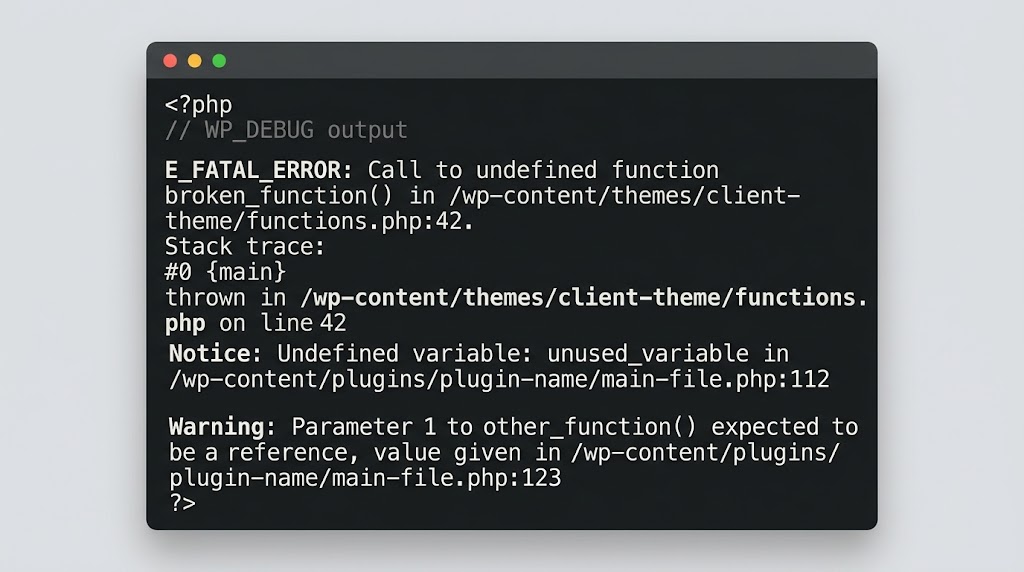
“Determine what the error actually is by examining the server’s error log. Or define WP_DEBUG in wp-config.php as true so you can see the error message right on screen”.
The Debug Setup:
// Add to wp-config.php
define('WP_ENVIRONMENT_TYPE', 'development');
define('WP_DEVELOPMENT_MODE', 'all');
define('WP_DISABLE_FATAL_ERROR_HANDLER', true);
define('SCRIPT_DEBUG', true);
define('WP_DEBUG', true);
define('WP_DEBUG_LOG', true);
define('WP_DEBUG_DISPLAY', false); // Show errors on screen
@ini_set('display_errors', 1);Code language: JavaScript (javascript)
Check Error Logs:
# Via WP-CLI
wp eval 'echo error_log_get_last()["message"];'

# Check server error logs
tail -f /var/log/apache2/error.log
# Or for Nginx
tail -f /var/log/nginx/error.logCode language: PHP (php)
🛠️ Other Common WordPress Development Issues
Issue 1: Failure to Upload Files & Images
“You try to upload images to your WordPress website but fail to do so. The potential reason behind this issue is incorrect permission”.
The Fix:
# Set correct file permissions via SSH
find /path/to/wordpress -type d -exec chmod 755 {} \;
find /path/to/wordpress -type f -exec chmod 644 {} \;
chmod 750 /path/to/wordpress/wp-content
chmod 750 /path/to/wordpress/wp-content/uploadsCode language: PHP (php)
Issue 2: Emails Going to Spam
“Email broadcasts from WordPress often fail this test. Leveraging a simple mail transfer protocol (SMTP) is an ideal solution to handle this problem. It uses proper authentication and helps enhance email deliverability rates”.
The Fix:
Install an SMTP plugin and configure with your email provider:
// Using PHPMailer with SMTP
add_action('phpmailer_init', function($phpmailer) {
    $phpmailer->isSMTP();
    $phpmailer->Host = 'smtp.yourprovider.com';
    $phpmailer->SMTPAuth = true;
    $phpmailer->Username = 'your-email@domain.com';
    $phpmailer->Password = 'your-password';
    $phpmailer->SMTPSecure = 'tls';
    $phpmailer->Port = 587;
});Code language: PHP (php)
Recommended SMTP Plugins:
- WP Mail SMTP (most popular)
- Post SMTP
- Easy WP SMTP
Issue 3: Stuck in Maintenance Mode
“WordPress websites often get stuck in maintenance mode during an update. Any interruption during the update process may result in your site being stuck in maintenance mode”.
The Fix:
Delete the .maintenance file via FTP or SSH:
# Via SSH
rm /path/to/wordpress/.maintenance

# Via WP-CLI
wp maintenance-mode deactivateCode language: PHP (php)
Preventive Measures:
- Perform updates during low-traffic periods
- Use a staging site for major updates
- Monitor update progress via WP-CLI
Issue 4: Connection Timed Out
“It occurs when the server from your website is overloaded and fails to complete the request of the browser”.
The Fix Steps:
- Deactivate all plugins to identify problematic plugins
- Activate plugins one by one to find the culprit
- Switch to a default theme to rule out theme issues
- Increase PHP memory and execution time
PHP Timeout Settings:
// In wp-config.php
set_time_limit(300);

// In .htaccess
php_value max_execution_time 300
php_value max_input_time 300Code language: JavaScript (javascript)
Issue 5: Child Theme Breaking with White Screen
“The exact same code could cause an error on one server but not another if they are running different PHP versions”.
The Fix:
- Enable WP_DEBUG to see the specific error
- Check your theme’s functions.php for PHP version-specific code
- Update deprecated functions
PHP Version Compatibility Pattern:
// Instead of:
$var = &$array['key'];

// Use:
$var = $array['key'];

// Instead of:
split('/pattern/', $string);

// Use:
preg_split('/pattern/', $string);Code language: PHP (php)
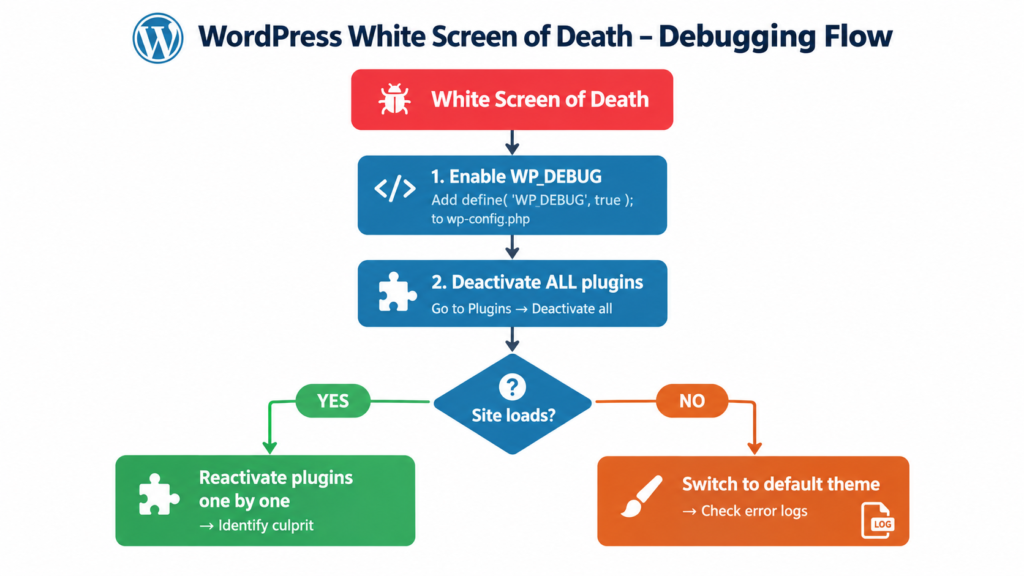
📊 Debugging Priority Flowchart
┌─────────────────────────────────────────┐
│          White Screen of Death          │
└─────────────────────────────────────────┘
                    │
                    ▼
┌─────────────────────────────────────────┐
│  1. Enable WP_DEBUG in wp-config.php   │
└─────────────────────────────────────────┘
                    │
                    ▼
┌─────────────────────────────────────────┐
│       2. Deactivate ALL plugins          │
│        (Rename plugins folder)           │
└─────────────────────────────────────────┘
                    │
              ┌─────┴─────┐
              ▼           ▼
┌─────────────────┐ ┌─────────────────┐
│   Site loads?   │ │  Still broken?  │
└─────────────────┘ └─────────────────┘
        │                    │
        ▼                    ▼
┌─────────────────┐ ┌─────────────────┐
│ Reactivate      │ │  Switch to      │
│ plugins one     │ │  default theme  │
│ by one          │ │                 │
└─────────────────┘ └─────────────────┘
        │                    │
        ▼                    ▼
┌─────────────────┐ ┌─────────────────┐
│ Identify the    │ │  Check          │
│ plugin and      │ │  error logs     │
│ update/remove   │ │                 │
└─────────────────┘ └─────────────────┘
🧠 WordPress Debugging Toolkit
| Tool | Purpose | How to Use |
|---|---|---|
| WP_DEBUG | Shows PHP errors | Enable in wp-config.php |
| Query Monitor | DB queries and performance | Install plugin |
| WP-CLI | Command-line WordPress management | SSH access required |
| Server Logs | Apache/Nginx errors | Check hosting control panel |
| DevTools Console | JavaScript errors | F12 in browser |
| Xdebug | PHP debugging | Install on development server |
Recent Post

WP-CLI: 15 Commands Every WordPress Developer Should Know

10 Essential WordPress Design Plugins for a Modern.

From Figma to WordPress: A Designer’s Handoff Checklist

Accessibility in WordPress Design: Your Ethical and Legal.

