


Designing in WordPress looks deceptively simple, which is precisely why it’s so easy to get wrong. The block editor (Gutenberg) offers incredible flexibility, but without understanding its limitations, your beautiful design can quickly become a developer’s nightmare.
Let’s look at the most common design pitfalls and the practical fixes that will save you hours of frustration.
❌ Mistake #1: Fighting the Vertical Stack
The block editor is built for vertical stacking. When you try to force complex, overlapping layouts, you’re essentially fighting the system’s natural flow. As one WordPress design handbook notes, “The real challenge isn’t just knowing these limitations—it’s designing within them while maintaining creative vision. The most successful WordPress designs find the sweet spot between ambition and practical implementation”.
The Fix:
Embrace the vertical nature of Gutenberg. Instead of creating deep nested structures, look for ways to achieve similar results with simpler block combinations. Use the Cover block for background images with text overlay rather than trying to position elements absolutely.
Pro Tip: For overlapping elements (a common design trend), use negative margins or the new position options introduced in recent WordPress versions rather than custom CSS hacks.
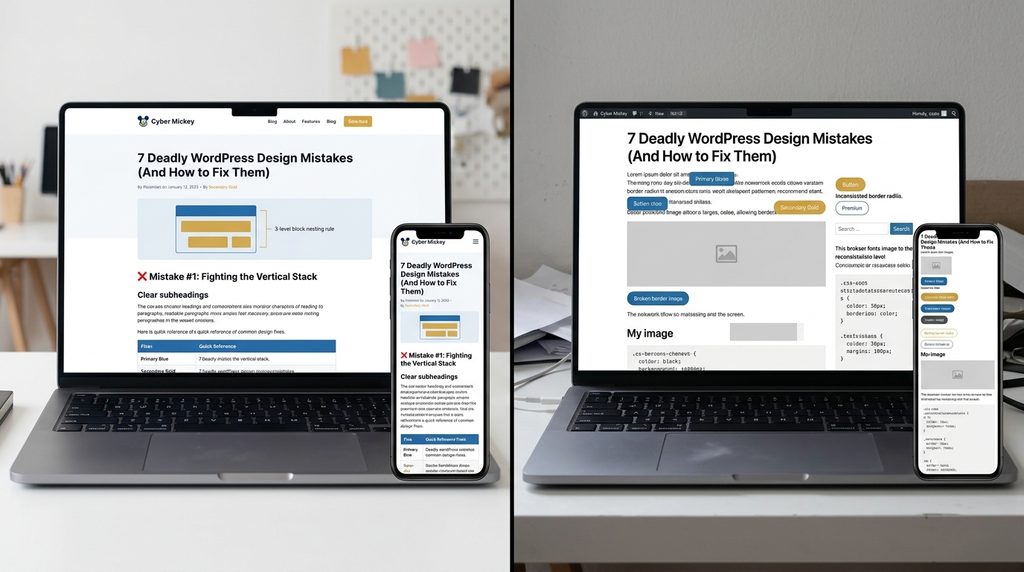
❌ Mistake #2: Deep Block Nesting
One of the most frustrating discoveries designers make is the block nesting limit. While it might seem reasonable to nest blocks deeply for complex layouts, this leads to serious issues:
- The editor becomes sluggish and unresponsive
- Block selection becomes difficult, especially on mobile
- Mobile display becomes unreliable
- Content editing becomes cumbersome for your clients
The Fix:
Keep nesting to 3 levels maximum whenever possible. If you’re going deeper, it’s time to reconsider your approach or build a custom block.
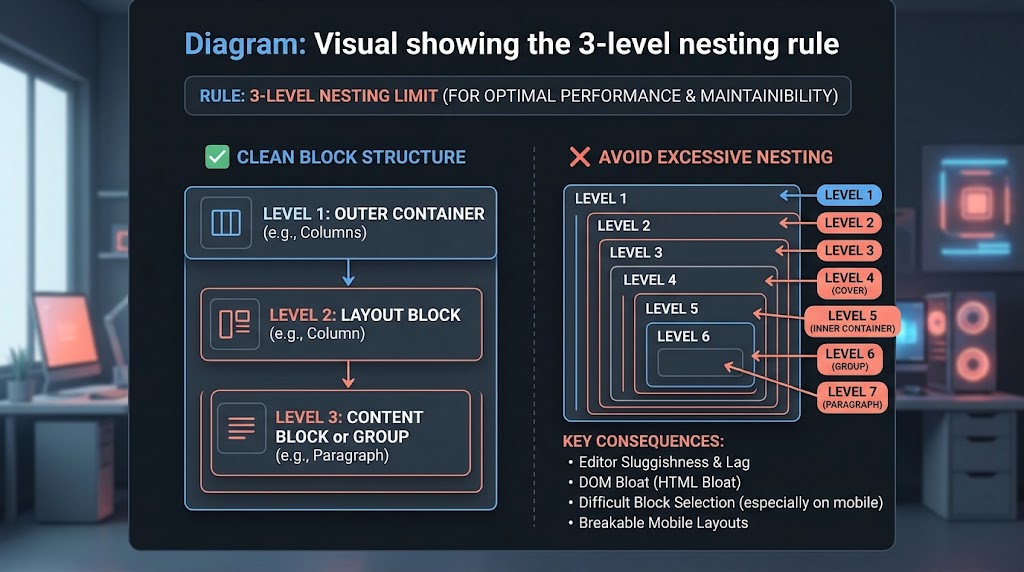
Code Example: Maintainable Block Structure
<!-- ✅ Good: Three levels of nesting -->
<!-- Columns Container -->
<div class="wp-block-columns">
    <!-- Level 1: Column -->
    <div class="wp-block-column">
        <!-- Level 2: Group -->
        <div class="wp-block-group">
            <!-- Level 3: Paragraph -->
            <p>Content here</p>
        </div>
    </div>
</div>

<!-- ❌ Avoid: Deep nesting (5+ levels) -->
<div class="wp-block-columns">
    <div class="wp-block-column">
        <div class="wp-block-group">
            <div class="wp-block-cover">
                <div class="wp-block-cover__inner-container">
                    <div class="wp-block-group">
                        <p>This is too deep!</p>
                    </div>
                </div>
            </div>
        </div>
    </div>
</div>Code language: HTML, XML (xml)
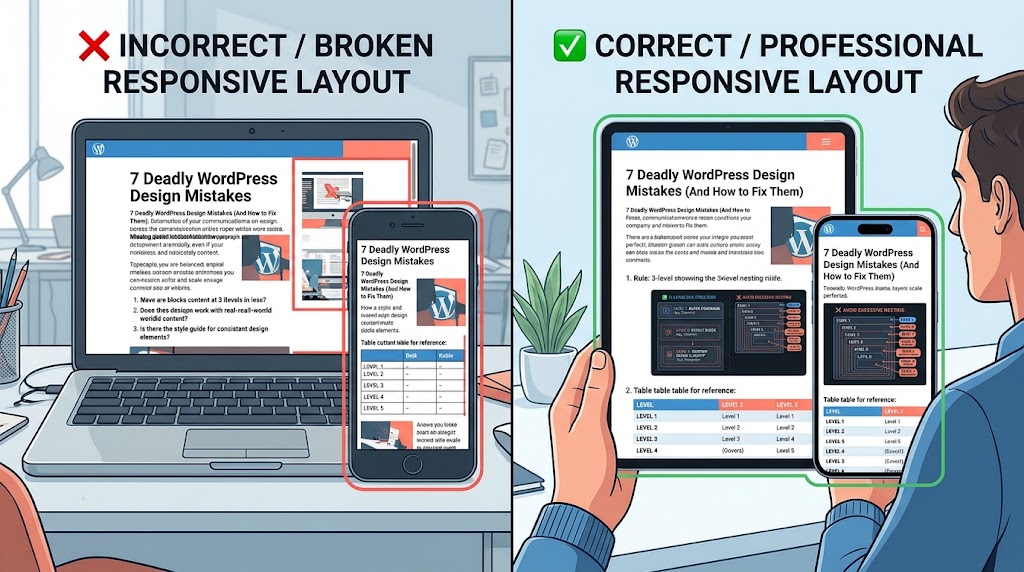
❌ Mistake #3: Ignoring Responsive Breakpoints
The built-in responsive tools often fall short for sophisticated designs. Common responsive issues include:
- Columns that don’t stack as expected on mobile
- Spacing becoming inconsistent across devices
- Image scaling that feels unpredictable
- Background patterns breaking at certain breakpoints
The Fix:
Test early and test often. Use the preview modes in the editor to check tablet and mobile views. When designing in tools like Figma, consider providing mobile views for the homepage, menu, and any other key sections that are “less straightforward for a developer to translate to mobile”.
Quick CSS Snippet for Responsive Images:
/* Ensure images scale properly across devices */
.wp-block-image img {
    max-width: 100%;
    height: auto;
}

/* Custom spacing for mobile */
@media (max-width: 768px) {
    .wp-block-columns {
        gap: 1rem;
    }
}Code language: CSS (css)
❌ Mistake #4: Underutilizing theme.json
Many designers underutilize theme.json, leading to unnecessarily complex implementations. This is a missed opportunity because theme.json provides powerful global styling options.
Often overlooked features include:
- Custom color palettes
- Typography presets
- Spacing variables
- Layout definitions
The Fix:
Define your design system in theme.json before writing any custom CSS. This ensures consistency and makes your theme more maintainable.
Example theme.json Configuration:
{
    "version": 2,
    "settings": {
        "color": {
            "palette": [
                {
                    "slug": "primary",
                    "color": "#0073aa",
                    "name": "Primary Blue"
                },
                {
                    "slug": "secondary",
                    "color": "#f7a81b",
                    "name": "Secondary Gold"
                }
            ]
        },
        "typography": {
            "fontSizes": [
                {
                    "slug": "small",
                    "size": "0.875rem",
                    "name": "Small"
                },
                {
                    "slug": "medium",
                    "size": "1.25rem",
                    "name": "Medium"
                },
                {
                    "slug": "large",
                    "size": "2rem",
                    "name": "Large"
                }
            ],
            "fontFamilies": [
                {
                    "fontFamily": "-apple-system, BlinkMacSystemFont, 'Segoe UI', Roboto, sans-serif",
                    "slug": "system",
                    "name": "System Font"
                }
            ]
        },
        "spacing": {
            "spacingSizes": [
                {
                    "slug": "small",
                    "size": "0.5rem",
                    "name": "Small"
                },
                {
                    "slug": "medium",
                    "size": "1rem",
                    "name": "Medium"
                },
                {
                    "slug": "large",
                    "size": "2rem",
                    "name": "Large"
                }
            ]
        }
    }
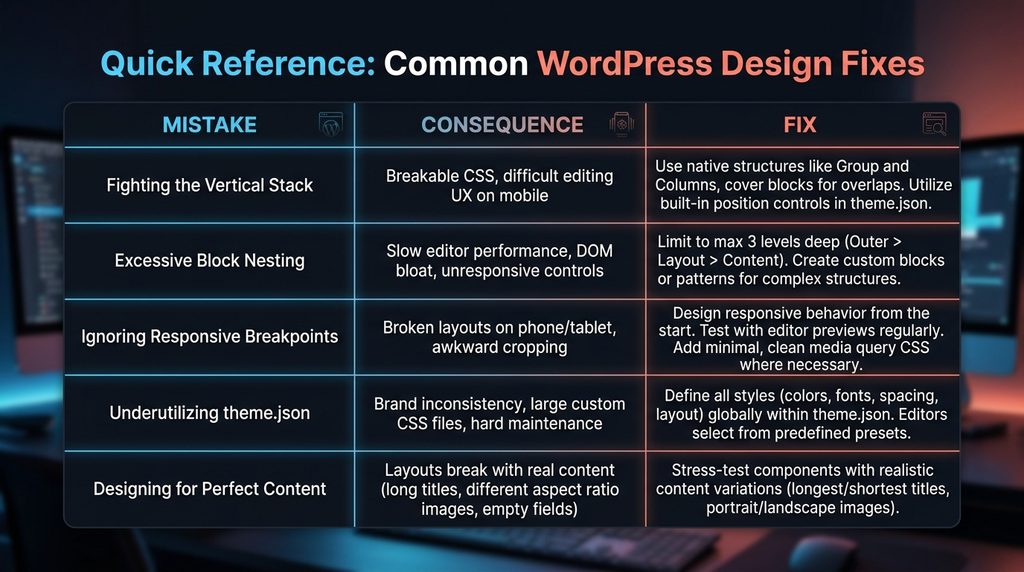
}Code language: JSON / JSON with Comments (json)| MISTAKE | CONSEQUENCE | FIX |
|---|---|---|
| Fighting the Vertical Stack | Breakable CSS, difficult editing UX on mobile | Use native structures like Group and Columns, cover blocks for overlaps. Utilize built-in position controls in theme.json. |
| Excessive Block Nesting | Slow editor performance, DOM bloat, unresponsive controls | Limit to max 3 levels deep (Outer > Layout > Content). Create custom blocks or patterns for complex structures. |
| Ignoring Responsive Breakpoints | Broken layouts on phone/tablet, awkward cropping | Design responsive behavior from the start. Test with editor previews regularly. Add minimal, clean media query CSS where necessary. |
| Underutilizing theme.json | Brand inconsistency, large custom CSS files, hard maintenance | Define all styles (colors, fonts, spacing, layout) globally within theme.json. Editors select from predefined presets. |
| Designing for Perfect Content | Layouts break with real content (long titles, different aspect ratio images, empty fields) | Stress-test components with realistic content variations (longest/shortest titles, portrait/landscape images). |
❌ Mistake #5: Designing for Perfect Content (Not Real Content)
When you design with placeholder text and perfectly sized images, you’re creating a template that will eventually break. “Avoid placing a play button icon over an image unless you know for sure that that item will be a video. The designs should reflect the reality of the real-world content as much as possible”.
The Fix:
Consider how your design will look when:
- Featured images are absent
- Featured images come in multiple sizes/aspect ratios
- Content in grid blocks varies in length
- A title is longer than expected
Checklist:
- Test with the longest possible title
- Test with missing featured images
- Test with varying amounts of content
- Test with oversized images
- Test with no content in some sections
❌ Mistake #6: Design Inconsistency
Creating five different variations of image sliders or using multiple button styles across your site makes your design feel unprofessional and creates more work for your development team. “Try to re-use modules throughout your designs instead of creating multiple different versions that accomplish the same function”.
The Fix:
Create a style guide or pattern library that outlines all design elements for the site, including but not limited to:
- Colors, fonts, and type sizes
- Buttons and hover states
- Image treatments
- Tablet and mobile layouts
❌ Mistake #7: Ignoring Core WordPress Views
Many designers only create mockups for the homepage and blog posts, forgetting about other key pages. This leads to disjointed experiences.
The Fix:
Design for all common WordPress views, including:
- Front/Homepage
- Blog page
- Single blog posts
- Static pages
- Archive page (tags/categories)
- Search page
- 404 page
- Any plugin-specific views (WooCommerce, forums, etc.)
✅ Summary: The Design Checklist
Before you ship that design to development:
1. ✅ Are blocks nested at 3 levels or less?
2. ✅ Does the design work with real-world content?
3. ✅ Is there a style guide for consistent design elements?
4. ✅ Have you tested responsive views?
5. ✅ Are all core WordPress views designed?
6. ✅ Is theme.json used for global styling?
7. ✅ Does the design embrace Gutenberg’s vertical nature?
By avoiding these seven deadly design mistakes, you’ll create WordPress sites that are not only visually stunning but also performant, maintainable, and a joy for clients to manage.
Recent Post

WP-CLI: 15 Commands Every WordPress Developer Should Know

10 Essential WordPress Design Plugins for a Modern.

From Figma to WordPress: A Designer’s Handoff Checklist

Accessibility in WordPress Design: Your Ethical and Legal.

