


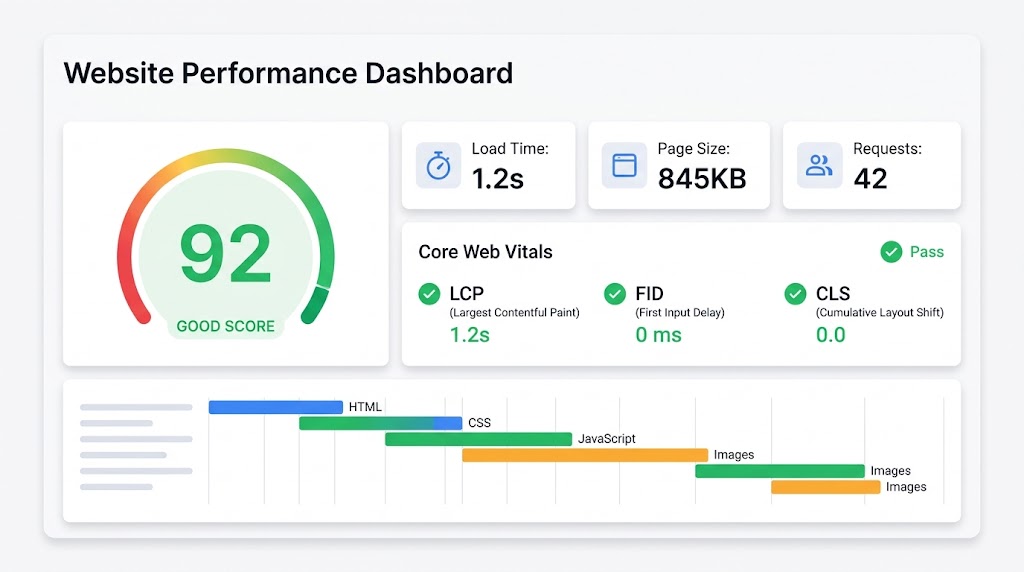
Even seasoned WordPress users make SEO mistakes. These hiccups can stop your site from getting the attention it deserves. Below are the ten most common WordPress SEO mistakes — and exactly how to fix each one.
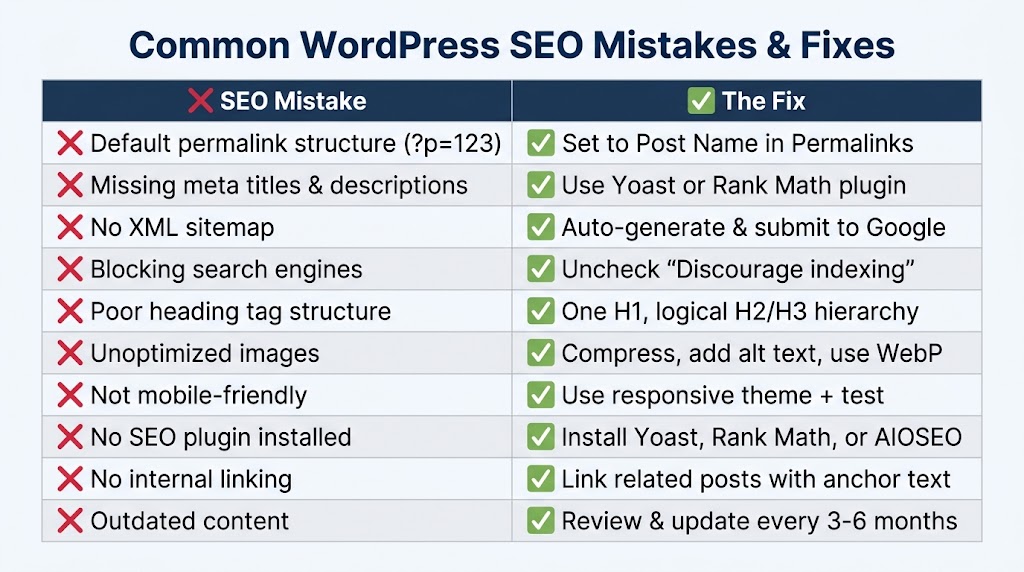
1. Not Setting a Custom Permalink Structure
The problem: by default, WordPress uses a URL structure like yoursite.com/?p=123. That is not SEO-friendly — it is hard for people and search engines to understand.
How to Fix It
- Go to Settings → Permalinks
- Select Post Name
- Click Save Changes
Now your URLs will be clean and keyword-rich: yoursite.com/awesome-blog-post.
Best Practice
- Keep URLs short and descriptive
- Include primary keywords
- Use hyphens, not underscores
- Avoid stop words (and, the, a)
2. Ignoring Meta Titles and Descriptions
The problem: meta titles and descriptions tell both Google and visitors what your page is about. Forgetting to set them is a big mistake.
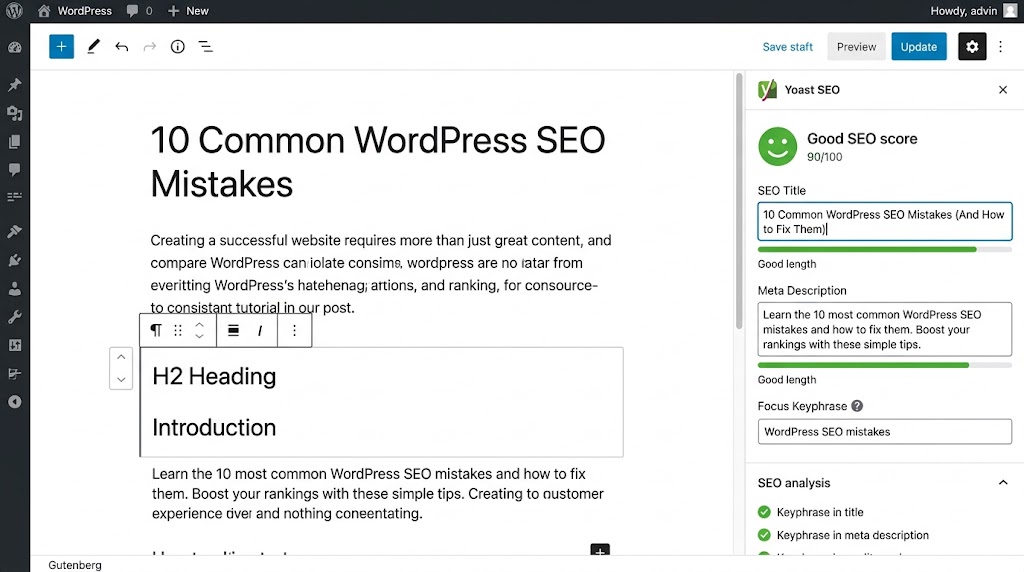
How to Fix It
- Install an SEO plugin (Yoast SEO or Rank Math)
- Edit each page or post
- Use the plugin box to enter a catchy title and helpful description
- Make sure they include your main keyword and sound natural
Example
❌ Bad Title: Blog Post 123
❌ Bad Description: (none)

✅ Good Title: WordPress SEO Basics: A Beginner's Guide
✅ Good Description: Learn 10 essential WordPress SEO tips that will boost your search rankings and drive more traffic to your site.
3. No XML Sitemap
The problem: a sitemap is like a roadmap for search engines. Without one, Google might miss your best content.
How to Fix It
- Most SEO plugins (Yoast, Rank Math) automatically create a sitemap
- Submit your sitemap to Google Search Console
- Ensure it updates automatically when you add new content
Submit to Google Search Console
- Go to Google Search Console
- Select your property
- Click “Sitemaps”
- Enter
sitemap_index.xml(for Yoast) or your plugin’s sitemap URL - Click Submit
4. Blocking Search Engines
The problem: this one is sneaky. If your site was in development, you may have checked a box telling Google to go away — and forgotten to uncheck it.
How to Fix It
- Go to Settings → Reading
- Look for the option that says “Discourage search engines from indexing this site”
- Make sure it is unchecked
Double-Check
- The
robots.txtfile should NOT block Googlebot - Use
?nocache=1in development to ensure proper indexing
5. Not Using Proper Heading Tags
The problem: headings (H1, H2, H3) are more than just bigger text. They structure content for both users and search engines.
How to Fix It
- H1: only one per page (post or page title)
- H2: main subheadings
- H3: supporting points under H2s
Example
<h1>How to Fix WordPress Security Issues</h1>
    <h2>Common Vulnerabilities</h2>
        <h3>Outdated Plugins</h3>
        <h3>Weak Passwords</h3>
    <h2>Security Best Practices</h2>
        <h3>Enable Two-Factor Authentication</h3>Code language: HTML, XML (xml)
6. Poor Image Optimization
The problem: big images slow down your site, and search engines don’t like slow sites. Plus, you’re missing out on image search traffic.
How to Fix It
- Compress images: use TinyPNG, Smush or Imagify
- Add alt text: describe the image content
- Use SEO-friendly filenames:
chocolate-cake-recipe.jpgnotIMG_1234.jpg
Image Optimization Checklist
- File size under 100KB
- Filename includes the keyword
- Alt text describes the image
- Correct file format (JPG for photos, PNG for graphics)
- Use WebP if possible
- Lazy load images
7. Not Making Your Site Mobile-Friendly
The problem: most people use phones to browse the web. If your site looks weird on mobile, visitors will bounce — and search engines will notice.
How to Fix It
- Pick a responsive theme
- Test your site: use Google’s Mobile-Friendly Test
- Test on actual devices (or browser developer tools)
- Use mobile-optimized plugins
Common Mobile Issues
- Buttons too small to tap
- Text too small to read
- Elements overlapping
- Horizontal scrolling required
8. Not Installing an SEO Plugin
The problem: trying to do SEO without a plugin is like baking a cake without flour.
How to Fix It
Install one of these:
- Yoast SEO: perfect for beginners
- Rank Math: packed with tools for advanced users
- All in One SEO: flexible and easy to use
9. Forgetting About Internal Linking
The problem: internal links guide visitors (and Google) from one page to another. They keep people on your site longer and spread SEO authority.
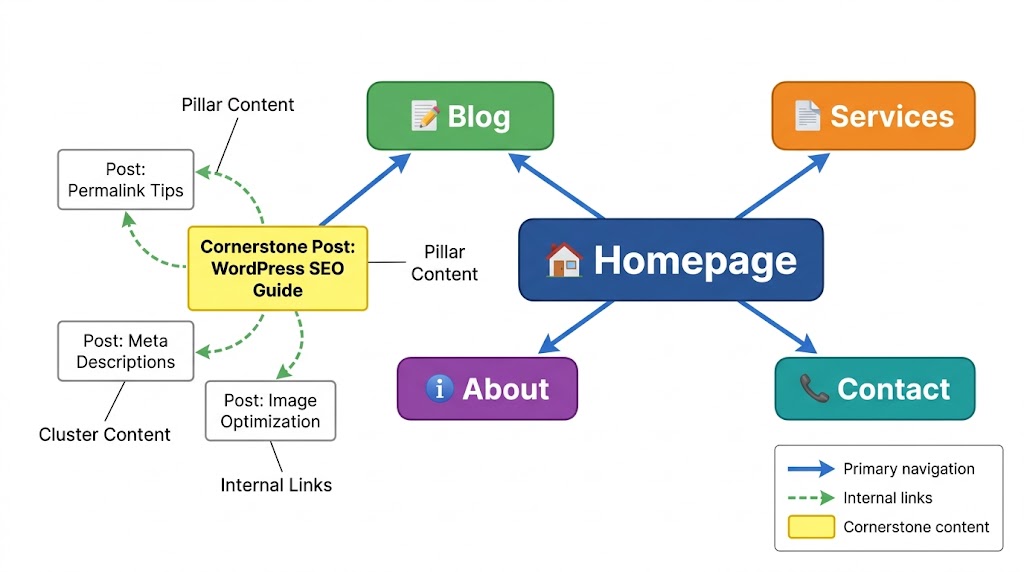
How to Fix It
- Whenever you write a new post: link to older related posts
- Use descriptive anchor text: “Check out our beginner’s SEO guide”
Internal Linking Strategy
New Post → Link to older related content
Old Content → Link to new content (update periodically)
Create cornerstone content (pillar posts) → Link to it from relevant posts
Use breadcrumbs → Helps both users and search enginesCode language: PHP (php)
10. Not Updating Content Regularly
The problem: old, dusty content is bad. Google loves fresh updates, and so do visitors.
How to Fix It
- Set a schedule: review content every 3–6 months
- Update information, links and meta descriptions
- Combine shorter, similar posts into long, detailed ones
Content Freshness Benefits
- Higher search rankings (Google favors current content)
- Increased engagement (visitors see up-to-date information)
- Better UX (fewer broken links)
- More social shares (share as “updated”)
Bonus SEO Tips
- Use schema markup: helps search engines understand your content
- Use structured data: JSON-LD format, available in many SEO plugins
- Optimize for featured snippets: answer questions directly and concisely
- Monitor Core Web Vitals: use Google PageSpeed Insights
- Fix broken links: use the Broken Link Checker plugin
Need Help Fixing Your WordPress SEO?
Cyber Mickey is a full-service web development company. If you would rather hand the technical work over to a team that does this every day, get in touch with us and we will audit your site, fix the issues above and build a roadmap for long-term organic growth.
Recent Post

WP-CLI: 15 Commands Every WordPress Developer Should Know

10 Essential WordPress Design Plugins for a Modern.

From Figma to WordPress: A Designer’s Handoff Checklist

Accessibility in WordPress Design: Your Ethical and Legal.

