


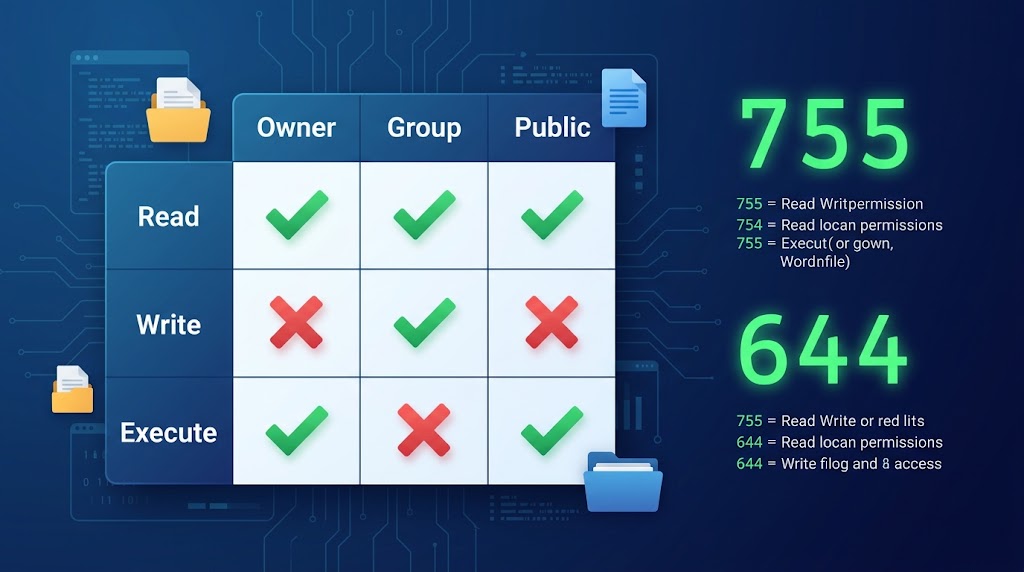
File permissions are one of the most overlooked security aspects of WordPress. Incorrect permissions can either lock you out of your site or leave it wide open to hackers.
This guide breaks down exactly how Unix file permissions work for WordPress, which numbers you should actually be using, and the copy‑paste commands that fix them in seconds.
🔍 Understanding File Permissions
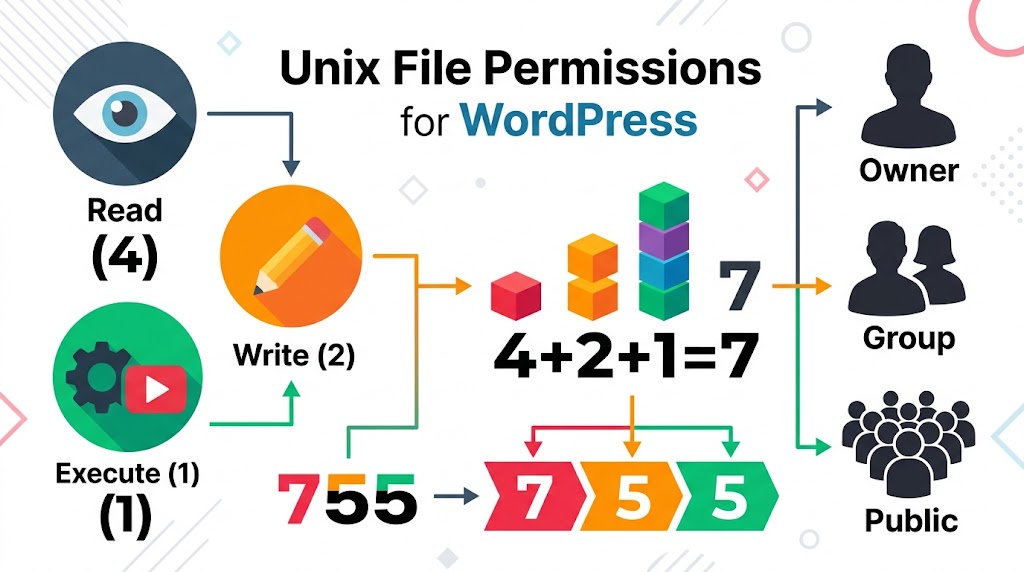
File permissions determine who can read, write, and execute files on your server. Every file and directory on a Linux/Unix server carries a three‑digit permission code.
The Three Permission Levels
- Read (r): View the file contents
- Write (w): Modify the file
- Execute (x): Run the file as a program
The Three User Groups
- Owner: The file owner (usually the website)
- Group: Users in the same group
- Public: Everyone else
Permission Numbers
Read = 4
Write = 2
Execute = 1
Total = Sum of numbers for each group

Example: 755 means:
- Owner: Read (4) + Write (2) + Execute (1) = 7
- Group: Read (4) + Execute (1) = 5
- Public: Read (4) + Execute (1) = 5Code language: PHP (php)
✅ Correct WordPress File Permissions
Here are the values you should be aiming for on a standard WordPress installation.

Core Files
- All files: 644
- All directories: 755
- .htaccess: 644
- wp-config.php: 644 or 640Code language: CSS (css)
wp-content
- Directory: 755
- All files: 644
- Themes: 755 directories, 644 files
- Plugins: 755 directories, 644 files
- Uploads: 755 directories, 644 files
Special Files
- wp-login.php: 644
- wp-admin directory: 755
- error_log: 600 (if present)Code language: CSS (css)
Example Permission Setup
# Set correct permissions via SSH
find /path/to/wordpress -type d -exec chmod 755 {} \;
find /path/to/wordpress -type f -exec chmod 644 {} \;
chmod 640 /path/to/wordpress/wp-config.php
chmod 755 /path/to/wordpress/wp-content
chmod 755 /path/to/wordpress/wp-content/uploadsCode language: PHP (php)
❌ Common Permission Mistakes
1. 777 Permissions (Too Permissive)
Directory: 777
Files: 777Code language: HTTP (http)
Problem: Any user or script can write to these files. Major security risk.
2. 400 Permissions (Too Restrictive)
wp-config.php: 400Code language: CSS (css)Problem: WordPress can’t read the file. Site breaks.
3. Different Permissions for Different Environments
Live site: 644 files, 755 directories
Staging site: 777 files (for convenience)
Problem: Easily forget to change staging permissions to secure values before going live.
🔧 How to Set Correct Permissions
Using SSH
# Set all directories to 755
find /path/to/wordpress -type d -exec chmod 755 {} \;

# Set all files to 644
find /path/to/wordpress -type f -exec chmod 644 {} \;

# Special: wp-config.php
chmod 640 /path/to/wordpress/wp-config.php

# Special: .htaccess
chmod 644 /path/to/wordpress/.htaccess

# Special: wp-content/uploads
chmod 755 /path/to/wordpress/wp-content/uploadsCode language: PHP (php)
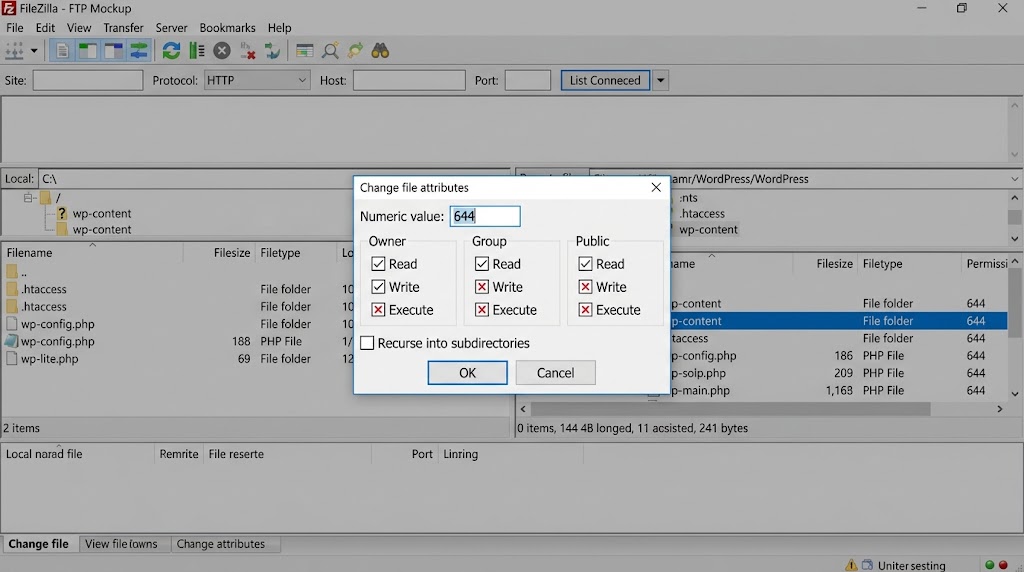
Using FTP (FileZilla)
- Navigate to your WordPress directory
- Right‑click on wp-config.php → File permissions
- Set to 640
- For the entire site: Select all files → File permissions → Set value
- Check “Recurse into subdirectories”
- Uncheck “Execute” for files
🛡️ Why Permissions Matter
“Review your WordPress file permissions” is one of the essential security tasks every site owner should run on a schedule.
What Can Go Wrong:
| Permission | Risk |
|---|---|
| 755 on files | Anyone can execute scripts |
| 777 on files | Anyone can write (hackers can inject code) |
| 777 on directories | Anyone can add files (hackers can upload malware) |
| 400 on wp-config.php | WordPress can’t read database credentials |
| 644 on wp-config.php (shared hosting) | Others on the same server might read it |
🎯 Permission Audit Checklist
| File/Directory | Correct Permission | Check | Issue |
|---|---|---|---|
| WordPress root dir | 755 | ☐ | |
| All directories | 755 | ☐ | |
| All files | 644 | ☐ | |
| wp-config.php | 640 | ☐ | |
| .htaccess | 644 | ☐ | |
| wp-content | 755 | ☐ | |
| wp-admin | 755 | ☐ | |
| wp-includes | 755 | ☐ | |
| uploads | 755 | ☐ | |
| Plugins | 755 dirs, 644 files | ☐ | |
| Themes | 755 dirs, 644 files | ☐ |
🚀 Automated Permission Script
Save the following as fix-wordpress-perms.sh and run it whenever you need to restore a clean permissions baseline.
#!/bin/bash
# fix-wordpress-perms.sh

WP_PATH="/path/to/wordpress"

# Set core permissions
find $WP_PATH -type d -exec chmod 755 {} \;
find $WP_PATH -type f -exec chmod 644 {} \;

# Special files
chmod 640 $WP_PATH/wp-config.php
chmod 644 $WP_PATH/.htaccess
chmod 755 $WP_PATH/wp-content/uploads

echo "Permissions fixed!"Code language: PHP (php)
Then schedule a monthly audit with crontab:
# Monthly permission audit
0 0 1 * * /bin/bash /path/to/fix-wordpress-perms.shCode language: PHP (php)
Final Thoughts
Correct file permissions are a free, permanent layer of defense. Directories should be 755, files should be 644, wp-config.php should be 640, and 777 should never appear on a production site.
Pair a locked‑down permission structure with regular updates, a web application firewall and ongoing malware scanning, and you close off the most common entry points attackers rely on.
Need a professional security audit for your WordPress site? Get in touch with Cyber Mickey — we harden, monitor and maintain WordPress websites so you can focus on your business.
Recent Post

WP-CLI: 15 Commands Every WordPress Developer Should Know

10 Essential WordPress Design Plugins for a Modern.

From Figma to WordPress: A Designer’s Handoff Checklist

Accessibility in WordPress Design: Your Ethical and Legal.

